
Everything you need to get up and running — and answers to the most common questions.
On this page
1. Getting Started
Invoicing System is currently in early access. Getting in takes less than a minute.
-
Apply for access
Click Get started free and fill in your name, email, and business name. No credit card required. -
Receive your credentials
Your login details will be sent to your email address within a few minutes. Check your spam folder if you do not see it. -
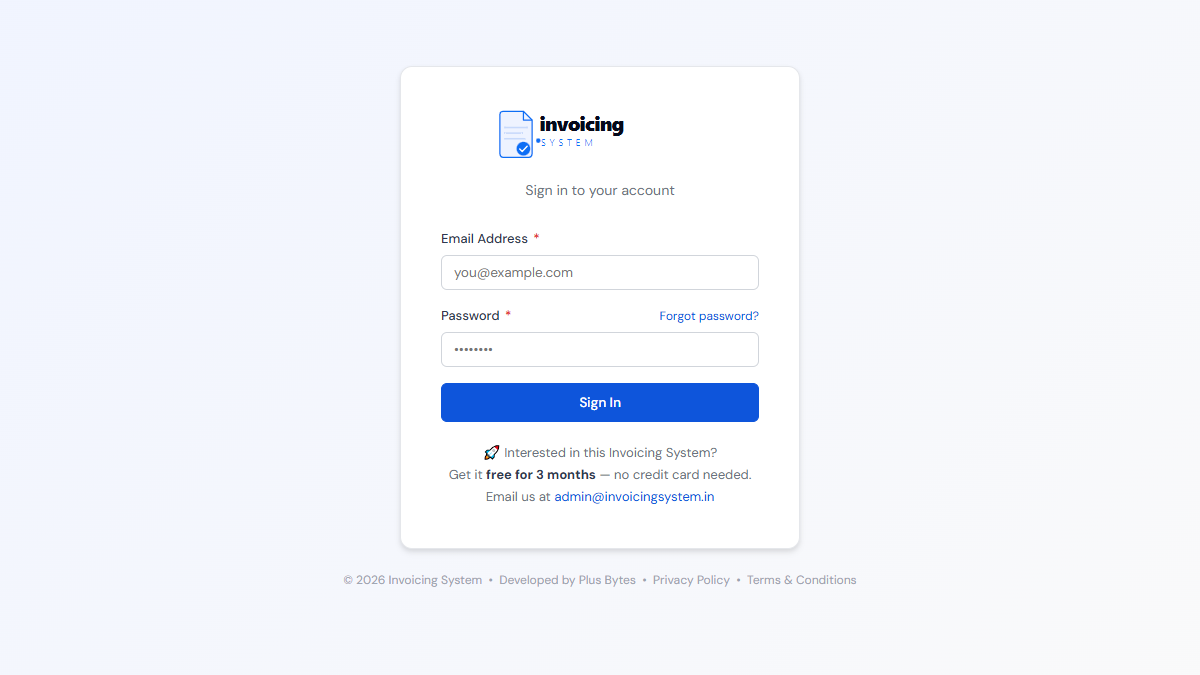
Log in
Visit invoicingsystem.in/login.php and sign in with your credentials.
2. Setting Up Your Company
Your company details appear on every invoice you generate — get this right before you create your first invoice.
-
Go to Company Profile from the sidebar.
-
Enter your business name, address, city, and state/UT.
-
Enter your GSTIN and PAN. These will appear as highlighted badges on your invoices. Both are optional if you are not GST-registered.
-
Upload your company logo. It will appear at the top of every invoice and PDF.
-
Click Save.

3. Adding Clients
Add your clients once and reuse them across all invoices.
-
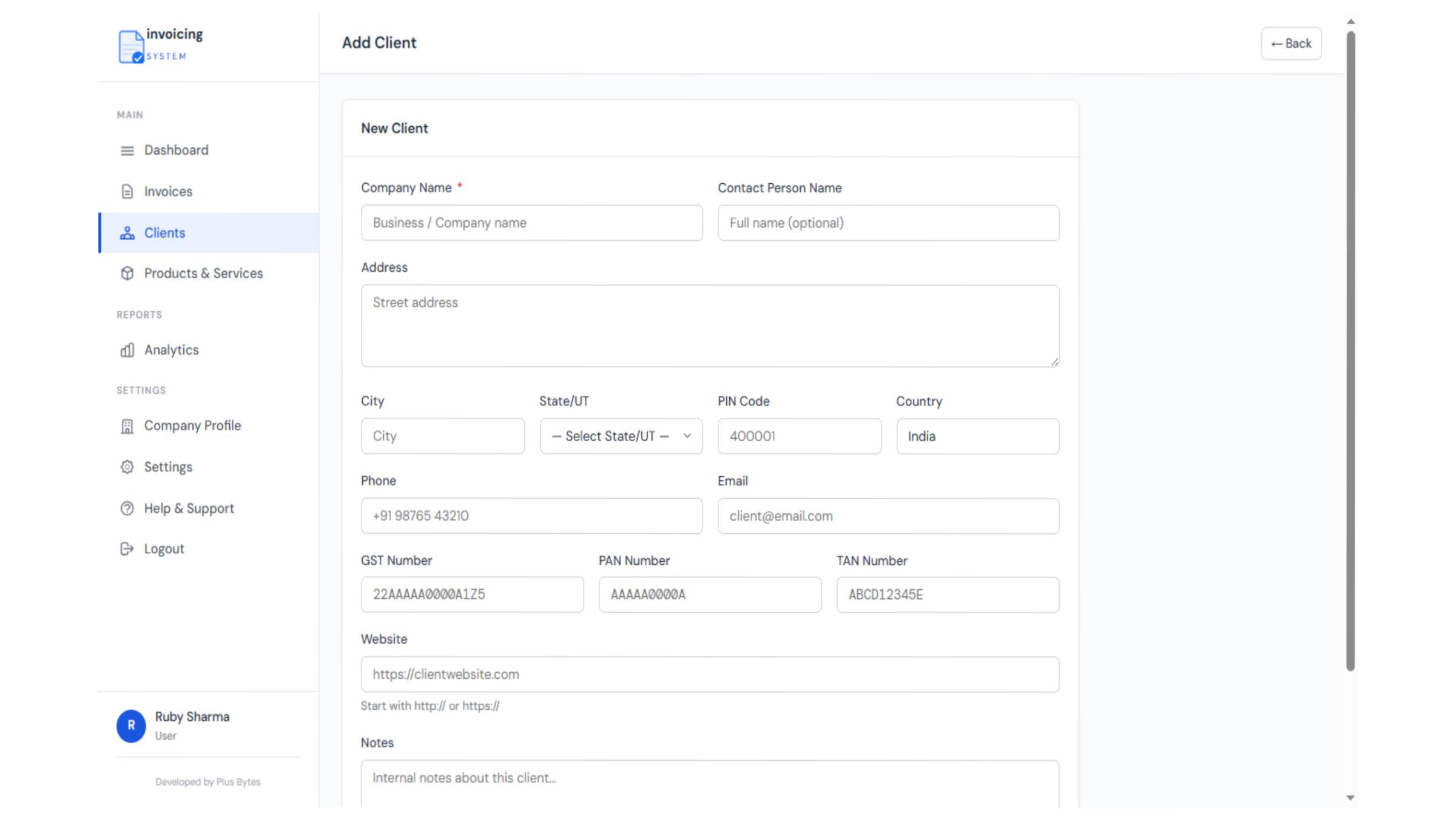
Go to Clients from the sidebar and click Add Client.
-
Enter the company name, contact person, email, and phone number.
-
Enter the client’s billing address and state/UT. This determines whether CGST+SGST or IGST applies automatically.
-
For international clients, select their country. The system will set the tax type to No Tax automatically.
-
Click Save Client.
4. Adding Products & Services
Build a catalogue of your most-used products and services so you can add them to invoices in one click. You can also add items directly on any invoice without pre-creating them.
-
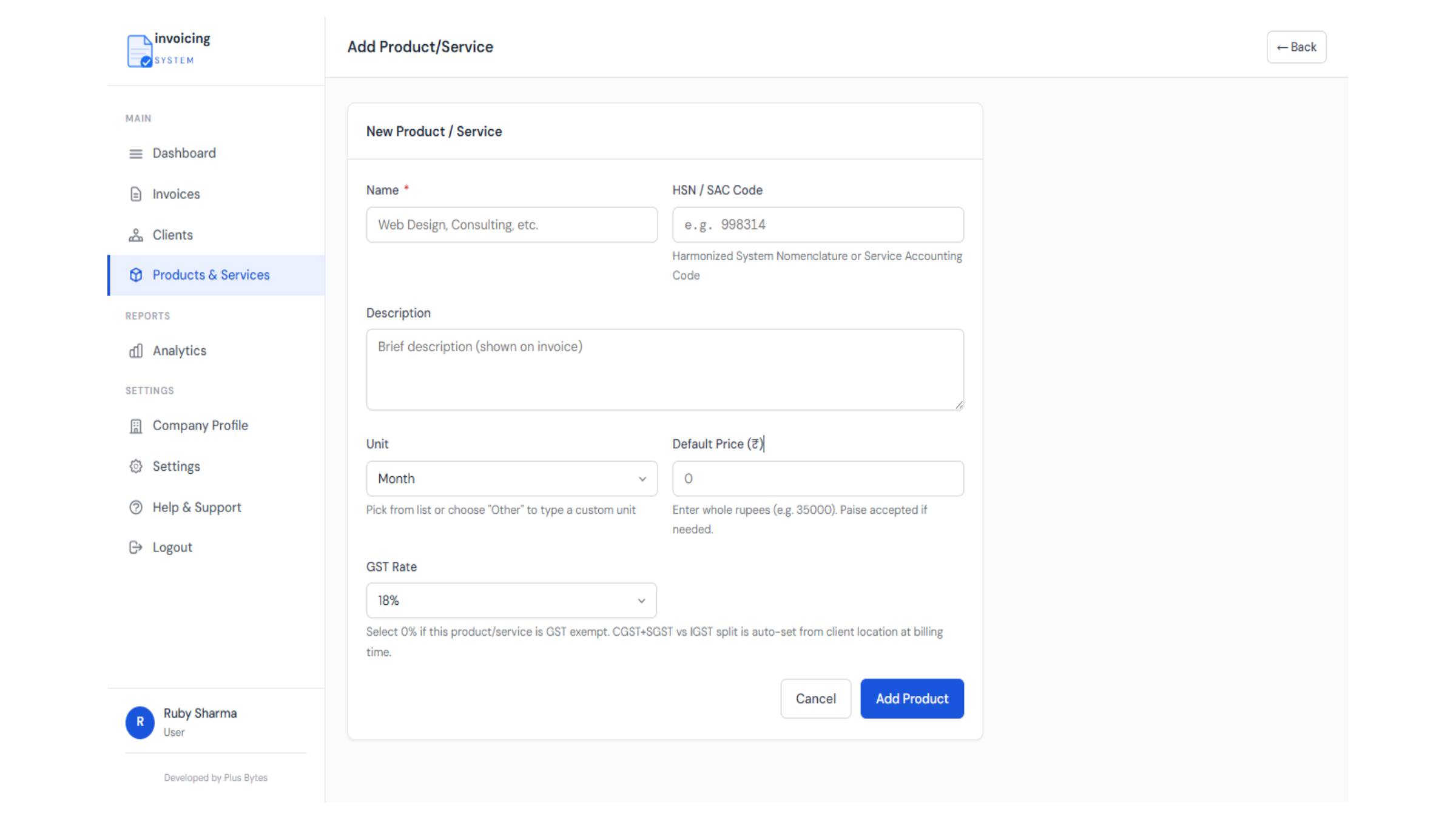
Go to Products & Services from the sidebar and click Add Product.
-
Enter a name (e.g. “Web Design Services”), a unit (e.g. hrs, pcs, months, kg — any text works), and a default price.
-
Select the applicable GST rate — 18%, 12%, 5%, or 0%. This rate will carry through automatically when you add this product to an invoice.
-
Click Save.
GST rates on products
The four available rates match the standard GST slabs in India:
- 18% — Most services (IT, marketing, consulting, etc.)
- 12% — Some goods and services
- 5% — Essential goods and certain services
- 0% — Exempt goods/services or composition scheme
If you are unsure of the correct slab for your product, consult your CA or refer to the CBIC website.
What if the GST rate changes?
Simply edit the product and update the GST rate. Old invoices are unaffected — they retain the rate at which they were created. New invoices will automatically use the updated rate.
5. Creating an Invoice
-
Go to Invoices and click New Invoice.
-
Select a client. The invoice number, date, and tax type are filled in automatically.
-
Add line items using one of two methods:
+ Add another item — opens a product picker. Select from your catalogue and the name, price, unit, and GST rate carry through automatically.
+ Add custom item — type a description, quantity, unit, and price on the spot. Useful for one-off items not in your catalogue.
-
Review the GST breakdown — CGST+SGST or IGST is calculated automatically based on the client’s location.
-
Add a due date and any notes if needed.
-
Click Save Invoice. It is now ready to share or download.

6. GST & Taxes
How tax type is determined automatically
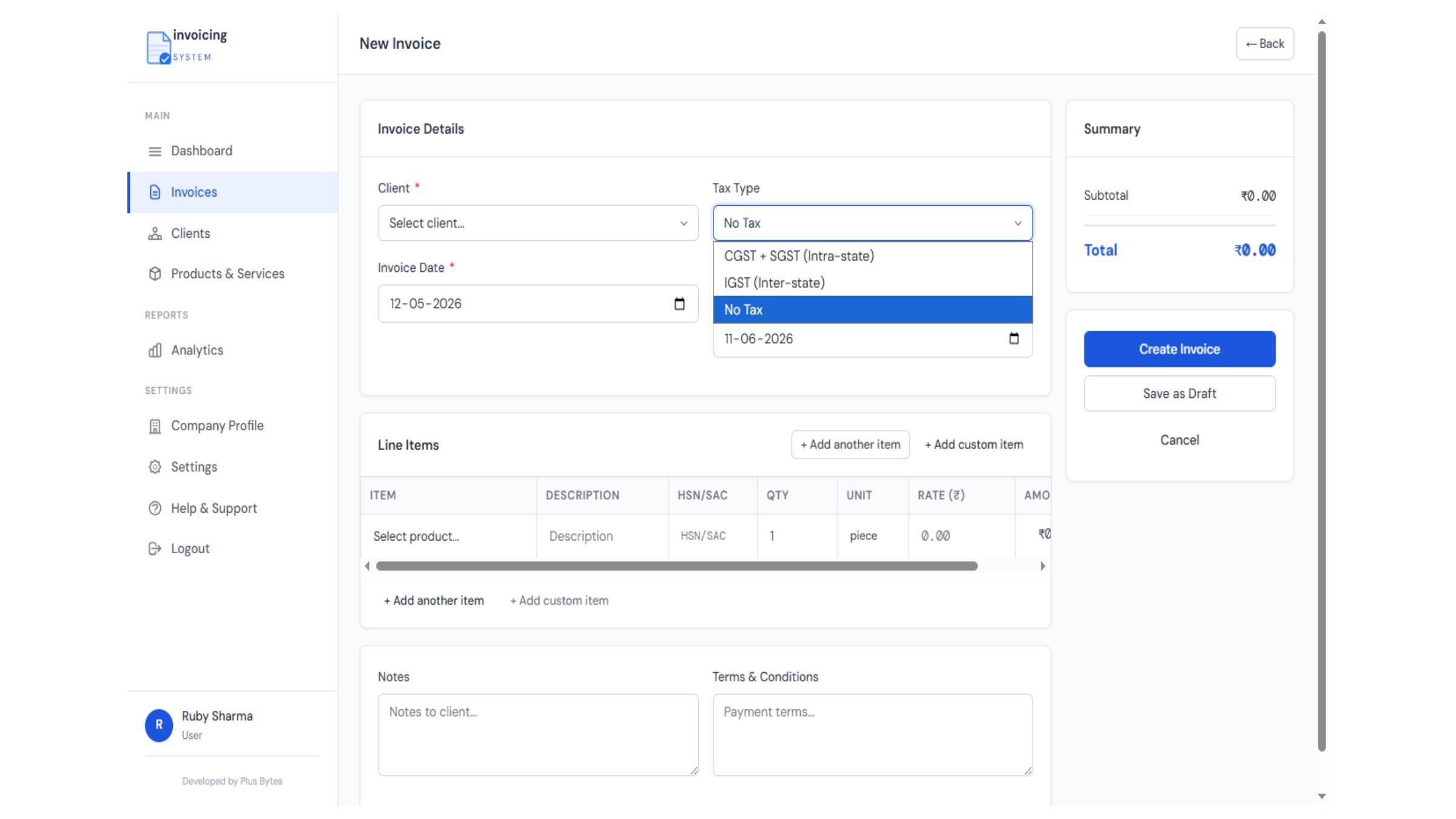
When you select a client on an invoice, the system compares your company’s registered state with the client’s state:
- Same state → CGST + SGST (intra-state)
- Different state → IGST (inter-state)
- Foreign client / no state set → No Tax
Switching tax type manually
You can override the automatically detected tax type on any invoice using the Tax Type selector on the invoice form. This is useful for special cases — for example, if a client in another state has asked you to invoice them under CGST+SGST, or if you are billing a foreign branch of an Indian company.
Mixed tax rates on a single invoice
Each line item can carry its own GST rate. For example, one line item at 18% and another at 5% on the same invoice — the system handles this correctly and breaks down the totals accordingly.
Zero-rated and exempt items
Set the GST rate to 0% on a product to indicate it is exempt or zero-rated. The line item will appear on the invoice with 0% GST — which is correct for GST compliance purposes.
7. Sharing & Downloading
WhatsApp (recommended)
Click the WhatsApp button on any invoice. A prefilled message opens in WhatsApp with the invoice amount and a direct link your client can view in their browser — no app, no login required on their end.
Click the Email button to open a prefilled email in your default mail client with the invoice link included.
Public share link
Every invoice has a unique public link (e.g. invoicingsystem.in/view-invoice.php?token=...). Copy and paste it anywhere — SMS, any chat app, or your own email. Your client does not need an account to view it.
Download PDF
Click Download PDF to get a ready-to-attach PDF of the invoice. The PDF is generated server-side and matches the share link view exactly.
Click Print to open a print-optimised version of the invoice directly in your browser.
Bulk actions
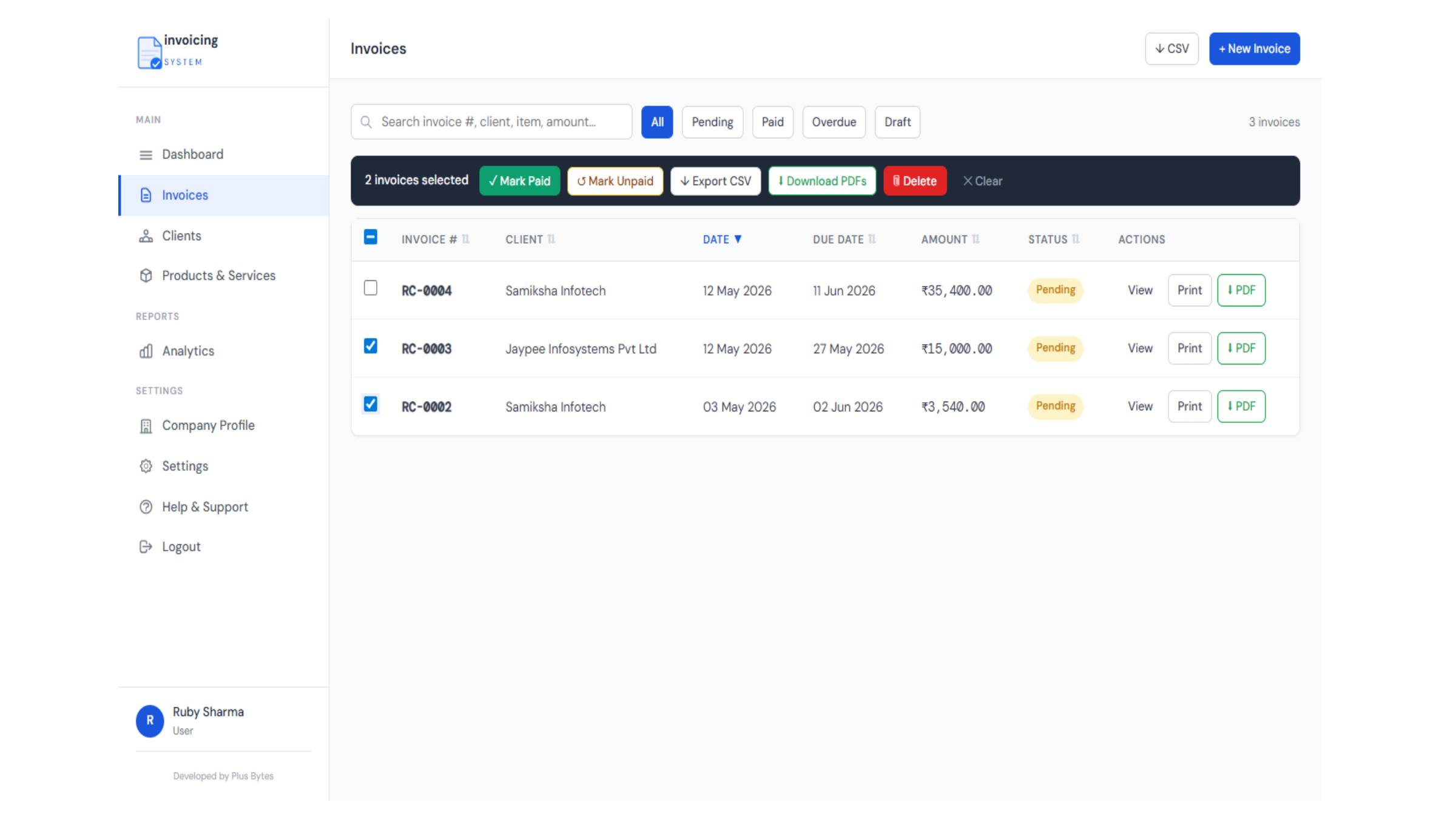
From the Invoices list, select multiple invoices to bulk download PDFs, export as CSV, mark as paid, or delete.
8. Recording Payments
When a client pays, record the payment details against the invoice. This keeps your books accurate and unlocks the analytics dashboard’s collected vs billed view.
-
From the Invoices list, click the Mark Paid button on any unpaid invoice.
-
Enter the amount received. This can differ from the invoice total — for example if the client deducted TDS or bank charges.
-
Select the payment mode — UPI, NEFT/RTGS, Cheque, Cash, or Wire Transfer.
-
Enter the payment date and an optional reference number (UTR, cheque number, transaction ID).
-
If the client deducted TDS, enter the TDS amount in the deduction field and select TDS as the reason. The system will treat TDS as a legitimate settlement — the invoice will show as Paid even if the amount received is less than the invoice total by the TDS amount.
-
Click Save Payment. The invoice status updates to Paid.
9. Payment Receipts
Once an invoice is marked as paid, you can generate a formal Payment Receipt PDF to send to your client as proof of payment.
-
Open a paid invoice and click Generate Receipt.
-
Review the pre-filled details — payment date, amount received, payment mode, and reference number pulled from what you entered when marking paid.
-
Click Download Receipt. A professionally formatted PDF is generated instantly.
What does the receipt show?
The receipt PDF includes your company details, client details, the original invoice reference, payment date, payment mode, amount received, and any TDS or deduction noted. It is formatted to serve as a formal acknowledgement of payment.
10. Foreign Currency Invoicing
If you bill clients outside India, you can issue invoices in their currency — USD, EUR, GBP, AED, or AUD — while keeping your own records in ₹.
Setting a client’s preferred currency
-
Open the client record and set their Preferred Currency to USD, EUR, GBP, AED, or AUD.
-
When you create a new invoice for this client, the currency is pre-filled automatically.
Creating a foreign currency invoice
-
Select the client. The currency field will show their preferred currency.
-
The exchange rate is fetched automatically from a live rate feed. You can override it manually if needed.
-
Enter your line item prices in the foreign currency. The ₹ equivalent is calculated and stored at the time of invoice creation.
-
GST is automatically set to No Tax for foreign currency invoices — exports are zero-rated under GST.
-
The PDF, share link, and print view all show the invoice in the foreign currency with the correct symbol ($ € £ د.إ A$).
Recording payment on a foreign currency invoice
When marking a foreign currency invoice as paid, enter the amount received in ₹ (what actually landed in your bank account). The system records both the original foreign amount and the ₹ received for accurate analytics.
11. Trash & Restore
Deleted invoices are not permanently removed immediately — they go to the Trash, where you can review and restore them if needed.
Restoring a deleted invoice
-
Click Trash in the sidebar (shows a count badge when there are deleted invoices).
-
Find the invoice you want to recover and click Restore. It will reappear in your active invoice list immediately.
Permanently deleting
From the Trash page, you can also Permanently Delete an invoice if you are sure you no longer need it. This action cannot be undone.
12. Analytics & Reports
The Reports page gives you a real-time financial overview of your business. Go to Reports from the sidebar.
Key metrics
- Total Billed — sum of all invoices in the selected period (in ₹ equivalent)
- Amount Collected — sum of payments actually received
- Outstanding — billed minus collected
- Overdue — invoices past their due date that are still unpaid
- TDS Deducted — total TDS recorded across all payments
Revenue trend chart
A month-by-month bar chart showing invoiced amounts over the selected period. Helps you spot seasonal patterns in your business.
Invoice status doughnut
A visual breakdown of your invoices by status — Paid, Pending, and Overdue — so you can see at a glance how much cash is still outstanding.
Filtering by date range
Use the From and To date filters at the top of the Reports page to narrow the view to any period — a single month, a quarter, or a financial year.
Exporting data
Click Export CSV to download your invoice data including payment columns — compatible with Excel and Google Sheets. Useful for sharing with your CA at filing time.
13. Frequently Asked Questions
How do I register and get my login credentials?
Click Get started free and fill in the short form. Your credentials will be emailed to you within minutes. No credit card required.
Is it really free?
Yes — completely free, no credit card required. Pro features for power users are coming soon. Existing users will get advance notice before anything changes.
Do I need a GSTIN to use Invoicing System?
No. GSTIN and PAN are optional fields. If you are not GST-registered, simply leave those fields blank — they will not appear on your invoices.
Can I manage multiple companies?
Yes. You can create and switch between multiple companies from within the same account. Each company has its own invoices, clients, products, and settings completely isolated from the others.
Is my data safe and private?
Yes. Every company’s data is fully isolated at the database level. No other user can see your invoices, clients, or business information. Data is stored on secured servers in India.
Can I export my data?
Yes. Export your invoice list as a CSV from the Reports page — compatible with Excel and Google Sheets. The export includes payment details. You can also bulk-download invoices as PDFs from the Invoices list.
I made a mistake on an invoice — can I edit it?
Yes. Open the invoice and click Edit. All fields including line items, tax type, and dates are editable. If the invoice has already been shared with a client, their share link will reflect the updated version automatically.
I accidentally deleted an invoice — can I recover it?
Yes. Go to Trash in the sidebar. Deleted invoices are held there and can be restored with one click. Only permanently deleted invoices are unrecoverable.
My client deducted TDS — how do I record that?
When marking the invoice as paid, enter the amount you actually received and enter the TDS amount in the deduction field. The system recognises TDS as a valid settlement — the invoice will show as Paid even though the amount received is less than the invoice total.
Can I invoice clients in USD or other foreign currencies?
Yes. You can issue invoices in USD, EUR, GBP, AED, and AUD. The exchange rate is fetched automatically and can be overridden. Your ₹ equivalent is locked at invoice creation time for accurate accounting records.
What is coming next?
We are building several features that most invoicing tools in India do not have yet — including automatic overdue payment reminders via email and WhatsApp, role-based access for teams, and a cash flow forecast view. These are coming in the months ahead.
How is Invoicing System different from other tools?
We are built specifically for Indian SMEs — not a global tool with GST bolted on. Auto-detection of CGST/SGST vs IGST based on client location, WhatsApp sharing with prefilled messages, public share links your clients can view without an account, foreign currency invoicing with live exchange rates, TDS-aware payment recording, and server-generated PDFs. India-hosted and built for Indian businesses.