
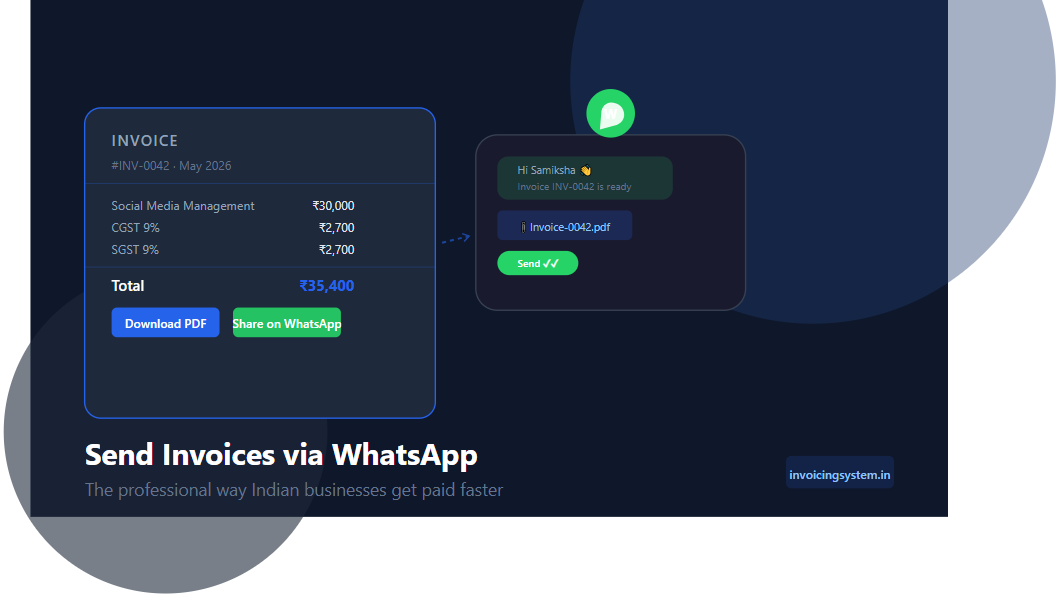
India runs on WhatsApp. Your clients are on it, your vendors are on it, and chances are you have already sent a payment reminder or two over a WhatsApp message. But most businesses are doing it wrong — sending PDFs that get buried in chats, typing amounts manually, or following up without a proper invoice link.
This guide shows you the right way to send invoices via WhatsApp — professional, trackable, and friction-free for your client.
Why WhatsApp Works for Invoicing in India
Email open rates in India hover around 20%. WhatsApp messages get opened at over 90%. For small business owners and freelancers dealing with clients who are not always at a desk, WhatsApp is simply where the conversation happens.
Sending your invoice through WhatsApp is not unprofessional — done correctly, it is faster, more likely to be seen, and easier for your client to act on immediately.
The Wrong Way Most Businesses Do It
Before covering best practices, here is what to avoid:
❌ Don’t
- Send a photo of a handwritten or printed invoice
- Type the invoice amount and items manually in a message
- Send a PDF with no context — just the file, no message
- Use informal language (“bhai payment kar do”)
- Send at odd hours (late night, early morning)
- Follow up aggressively the same day
✓ Do
- Share a clean link your client can open in their browser
- Include a brief, professional message with key details
- State the amount, due date, and a clear call to action
- Send during business hours
- Follow up politely after the due date if needed
Option 1 — Share a Public Invoice Link (Recommended)
The best way to send an invoice via WhatsApp is with a public share link — a unique URL that opens your invoice in the client’s browser. No app download, no login, no PDF to hunt through their downloads folder.
Your client sees a clean, professional invoice on their phone or desktop instantly.
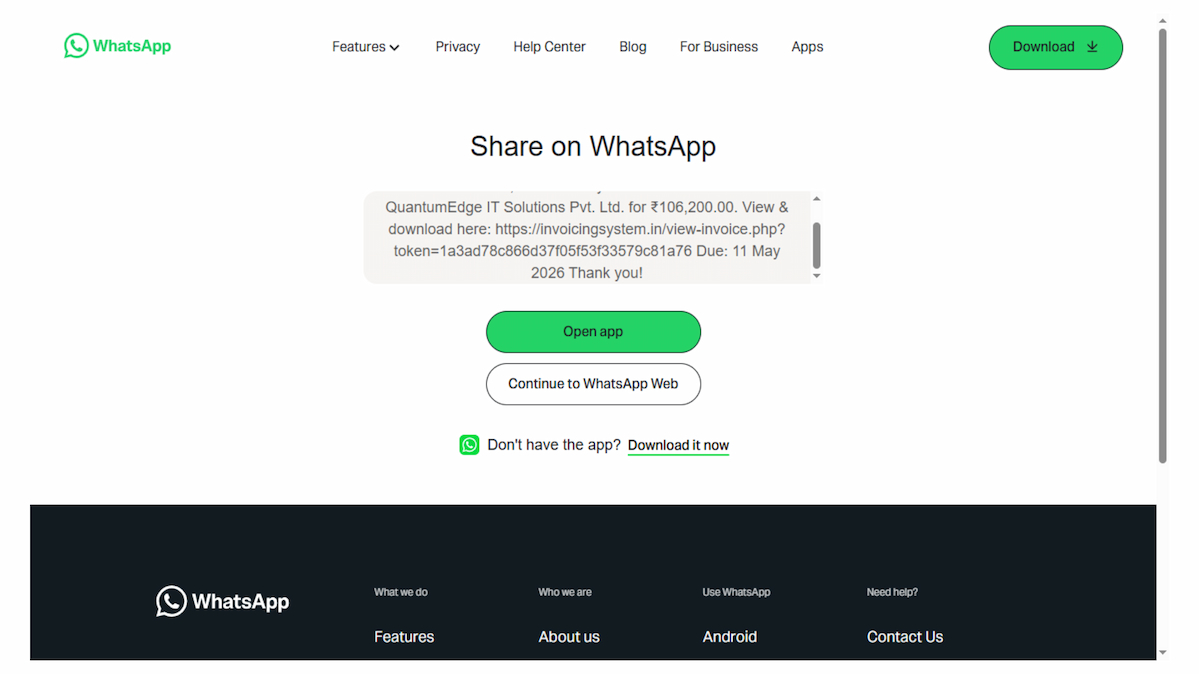
What a good WhatsApp invoice message looks like
Here is a template that works:
Key elements of this message:
- Invoice number — makes it easy to reference in follow-ups
- Amount — your client immediately knows what they owe
- Due date — sets a clear expectation
- Direct link — one tap to view the full invoice
- Professional sign-off — name and company
Option 2 — Send a PDF Attachment
If your client specifically asks for a PDF, send one — but pair it with a proper message, not just a bare file drop.
Tips for PDF attachments on WhatsApp
- Name the file clearly:
Invoice-INV-2026-0042-CompanyName.pdf— notdocument1.pdf - Always include a message with the amount and due date, even when sending the PDF
- Keep the PDF under 5MB — WhatsApp compresses files above this
- Use a server-generated PDF (not a screenshot) so the text is selectable and the numbers are clear
How to Send an Invoice via WhatsApp — Step by Step
-
Create your invoice
Fill in the client details, line items, GST, and due date. Make sure all details are correct before sending — editing after sharing is possible but looks unprofessional. -
Click the WhatsApp share button
On the invoice page, click the WhatsApp button. A prefilled message opens in WhatsApp with the invoice amount, number, and share link already typed in.
-
Select your client’s contact
WhatsApp opens on your phone or desktop. Select or search for your client’s contact. Review the prefilled message and personalise it if needed. -
Send during business hours
Send between 9 AM and 6 PM on working days. Avoid Sundays and public holidays unless the due date is imminent. -
Wait for the blue ticks
Double blue ticks mean the message has been read. Give your client at least 2–3 working days before following up.
Following Up on an Unpaid Invoice via WhatsApp
Payment reminders are awkward. Keep them short, professional, and non-confrontational. Here are three templates for different stages:
Reminder 1 — On the due date
Reminder 2 — One week overdue
Reminder 3 — Two weeks+ overdue
WhatsApp Business vs Regular WhatsApp for Invoicing
If you send invoices and follow-ups frequently, consider switching to WhatsApp Business (free app). Key advantages for invoicing:
- Business profile — shows your company name, address, and website to clients
- Quick replies — save your invoice message templates and send them in one tap
- Labels — tag contacts as “Invoice Sent”, “Payment Pending”, “Paid”
- Away messages — auto-reply outside business hours so clients are not left hanging
- Catalogue — list your services (optional)
The regular WhatsApp app works fine for occasional invoicing. WhatsApp Business is worth it once you are managing 10+ active clients.
Is Sending a GST Invoice via WhatsApp Legal?
Yes. The GST Act does not prescribe a specific delivery method for invoices. A GST invoice sent via WhatsApp — whether as a PDF or a link to a digital invoice — is legally valid as long as it contains all the mandatory fields required under Rule 46 of the CGST Rules.
Your client can use a WhatsApp-shared invoice to claim Input Tax Credit, provided the invoice itself is compliant. The delivery channel does not affect compliance.
Send Your Next Invoice via WhatsApp in 30 Seconds
Invoicing System generates a prefilled WhatsApp message with your invoice amount and share link — one tap and it’s sent. No copy-pasting, no manual typing.
Frequently Asked Questions
Is a WhatsApp invoice legally valid in India?
Yes. GST law does not restrict how an invoice is delivered. As long as the invoice contains all mandatory fields under the CGST Rules, it is valid regardless of whether it was sent by email, WhatsApp, or post.
Can my client claim ITC on an invoice I sent via WhatsApp?
Yes, provided the invoice is GST-compliant — correct GSTIN, tax type, amounts, and all mandatory fields. The delivery method does not affect ITC eligibility.
Should I send a PDF or a link?
A public share link is better for WhatsApp. It opens instantly in the browser, cannot get corrupted, and your client does not need to download anything. Send a PDF only if the client specifically requests one.
What if my client does not have WhatsApp?
Use the email share option instead — it opens a prefilled email with the invoice link. You can also copy the public share link and paste it into any other messaging app or SMS.
How many times should I follow up on an unpaid invoice?
Send reminders on the due date, one week overdue, and two weeks overdue. After 30 days with no response, consider a formal written notice or involve your accountant. Beyond 3 WhatsApp reminders, shift to email or a formal channel.